

Optimising Windows 11 with Intune & Autopilot: Automatically removing bloatware

Aron Rath
Consultant Workplace - Professional Services
Setting up new Windows systems is a balancing act for many IT departments: on the one hand, computers need to be available quickly; on the other, they must be tailored precisely to the company’s needs. It is not uncommon for a great deal of unnecessary software – so-called bloatware – to end up on the device after unpacking, which nobody needs and which unnecessarily slows down the systems. With Windows Autopilot and Microsoft Intune, modern Windows 11 deployments can be centrally managed and automated as zero-touch deployments. The new features introduced with Windows 11 25H2 offer additional ways to make deployments even leaner and more efficient.
How can organisations get rid of bloatware, optimise their systems and fully harness the potential of new Windows versions such as 25H2? And what specific considerations are there for Intune and Autopilot set-ups? This article provides a practical overview and shows how businesses can take their Windows deployments to the next level.
Why bloatware is a problem in businesses
Bloatware refers to pre-installed applications, tools or services that Microsoft and hardware manufacturers include on Windows devices by default. Many of these are irrelevant for productive use within a business – on the contrary: they take up storage space, slow down systems, create potential security vulnerabilities and often lead to additional administrative overhead.
With increasing demands on security, compliance and efficiency, lean Windows systems offer a strategic advantage. IT administrators should therefore start at the deployment stage to consistently exclude unnecessary software.
Intune and Windows Autopilot as the foundation for modern deployments
Microsoft Autopilot enables new Windows devices to be rolled out pre-configured and monitored, without them first having to pass through the IT department. Intune handles centralised endpoint management as well as the automatic assignment of policies, applications and security settings. The benefits include:
- Devices can be delivered directly to end users
- Standardised, scalable configurations
- Automatic assignment of applications, settings and permissions
- Reduced potential for errors thanks to automated processes
These models are ideal, particularly for larger organisations with distributed teams, as they significantly reduce the effort required per device and improve the user experience. In conjunction with Microsoft Intune, Windows Autopilot enables a virtually fully automated zero-touch deployment of Windows 11 devices – from the first boot-up through to productive use by the end user.
New features in Windows 11 25H2: More control, less bloat
With the update to Windows 11 25H2, Microsoft is refining the control options available during deployment.
Key new features include:
- ‘Windows Core PC’ mode: an even more modular Windows installation with a focus on essential components
- Improved integration of Intune into the setup and OOBE (Out-of-Box Experience) phases
- Greater transparency when removing and blocking unwanted apps via Intune reporting
The new policy “Remove Default Microsoft Store Packages from the System”
One of the most significant new features in Windows 11 25H2, which should be of particular interest to many IT administrators, is the new policy “Remove Default Microsoft Store packages from the system”. This policy addresses a key issue for many organisations: the automatic installation of default apps from the Microsoft Store on new devices.
What are the benefits of this new option?
Until now, it was very time-consuming to remove default apps such as Solitaire Collection, Xbox Companion and others after a rollout using scripts or custom policies. This approach was prone to errors and not always reliable.
With the new policy “Remove Default Microsoft Store packages from the system”, IT administrators can now specify via policy that all pre-installed Store apps are automatically removed during Windows setup. This already works directly as part of the Autopilot process – before the user starts the system for the first time.
Technical process and benefits of the policy
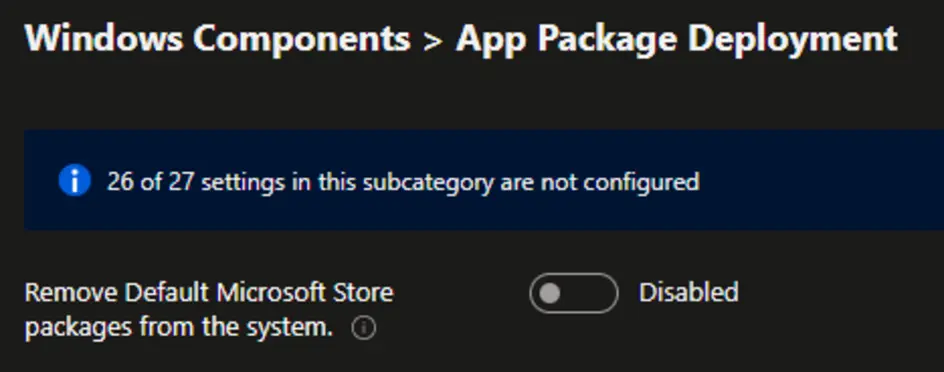
- Enabling the policy via Intune (Device configuration > Administrative templates)
- The policy not only removes classic UWP bloatware, but also explicitly targets standard apps that Microsoft has previously included by default
- Removal takes place early in the process, meaning users cannot see these applications in the first place or use them accidentally
- The logic for removing the apps is re-executed when new user profiles are created, as well as during logins and logouts.
- Even after a feature update, the default Store apps will no longer be automatically reinstalled as long as the policy remains active
Specific benefits for organisations
- Minimal effort required for device management: no more additional scripts or workarounds are needed
- Clean, standardised systems that better meet compliance and security requirements
- Increased user acceptance: no unwanted games or entertainment apps to distract from work or cause data protection issues
- Improved performance and fewer sources of error during re-installations and new installations
Practical example: Bloatware-free Windows with Intune and Autopilot
A company defines a device profile for new devices in Intune, enables the policy ‘Remove Default Microsoft Store packages from the system’ and rolls out the profile to all devices. Once the deployment is complete, users receive a Windows system that has already been cleaned up, with the defined default apps no longer present.
The policy can be found in the Intune Settings Catalogue under: Administrative Templates → Windows Components → App Package Deployment
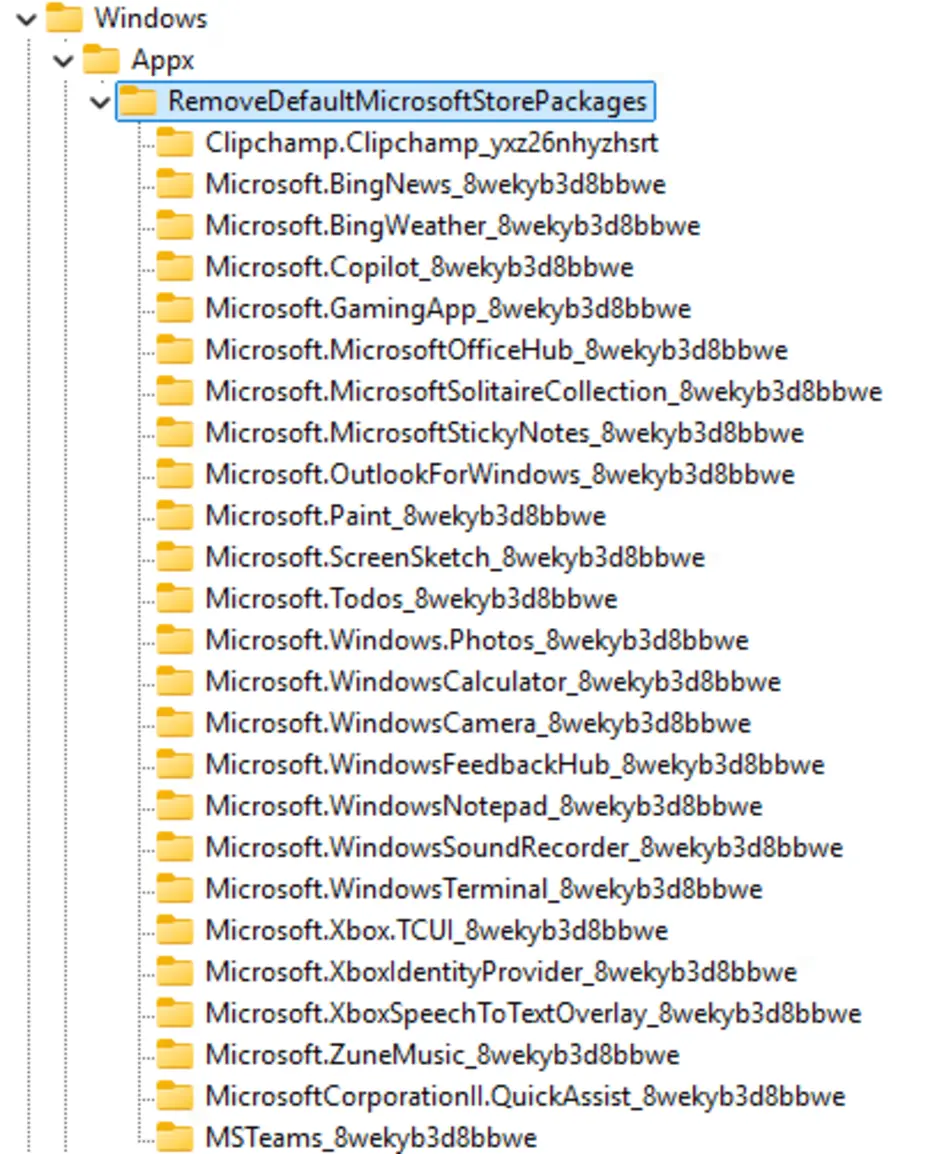
The application of the policy can also be verified on the client. The settings are stored in the registry under “HKLM\SOFTWARE\Policies\Microsoft\Windows\Appx\RemoveDefaultMicrosoftStorePackages”. Incidentally, this also applies to the corresponding Group Policy.
Best practices & pitfalls
Despite the advantages, administrators should check the following in advance:
- Are there any company-specific apps required from the Microsoft Store? If so, install them individually or mark them as required.
- The policy applies to standard Store apps – OEM apps or specific third-party applications must continue to be actively managed.
- Regular monitoring remains important in order to identify any user enquiries or specific requirements at an early stage.
Conclusion
The new policy ‘Remove Default Microsoft Store packages from the system’ in Windows 11 25H2 offers real added value for IT departments that prioritise lean, secure working environments. It automates the removal of unwanted apps and significantly simplifies the deployment process.
Take advantage of the new capabilities of Windows 11 25H2 in combination with Microsoft Intune and Windows Autopilot to streamline your Windows deployment in a targeted manner and permanently eliminate bloatware.
Is your Windows deployment really optimised?
Many organisations are already using Microsoft Intune and Windows Autopilot successfully, but are not fully exploiting the potential of modern Windows deployments.
In a no-obligation consultation, we’ll show you how to make your Windows deployment more efficient and reduce unnecessary administrative overhead.
Frequently Asked Questions (FAQ)
Does the policy also remove OEM software from the manufacturer?
No. The policy applies exclusively to Microsoft Store apps provided by default. Manufacturer-specific applications must still be managed or removed separately.
Will the removed apps be reinstalled after a feature update?
As long as the policy remains active, Windows 11 25H2 prevents the automatic restoration of the removed default Store apps.
Can I still deploy individual Store apps?
Yes. Required applications can be deployed selectively via Microsoft Intune as ‘Required Apps’ or ‘Available Apps’.
Is the policy compatible with Windows Autopilot?
Yes. The removal takes place during the deployment process and is therefore ideal for zero-touch deployments with Windows Autopilot.
What are the benefits of a bloatware-free Windows system?
Less administrative overhead, greater security, better performance, a consistent user experience and faster device deployment.
Aron Rath,
Consultant Workplace - Professional ServicesAs a consultant, Aron advises companies on Microsoft Exchange and Microsoft 365, specialising in the migration of Microsoft Exchange environments and endpoint management with Microsoft Intune. He also passes on his experience in seminars on these topics.