

Creating, using and managing Copilot Skills in chat

Alian Zenn
Workplace Consultant
A Copilot Skill is a saved set of instructions that Microsoft 365 Copilot Chat automatically applies when appropriate queries are made. This enables Copilot to carry out recurring tasks such as minutes, status reports or customer emails, always following the same guidelines. Since October 2026, users have been able to create and use skills directly within the chat, whilst IT manages them centrally in the Microsoft 365 Admin Centre.
A status report should always follow the same format, meeting minutes should adhere to a fixed structure, and emails to clients should strike the right tone. Nevertheless, Copilot users have so far had to explain these requirements anew with every enquiry. This is precisely where Skills come in.
Until now, Skills were primarily known from Copilot Cowork, PowerPoint and Agents. They are now also available directly in Chat – the very place where many users work with Copilot on a daily basis.
In Message Centre notification MC1493223 dated 9 October 2026, Microsoft announced that Skills can be used and created in Microsoft 365 Copilot Chat. The global roll-out has been underway since October 2026, with tenants using Information Barriers to follow in November.
For organisations, this is more than just a convenience feature. Skills determine how Copilot delivers results in day-to-day work. This raises questions regarding authorisation, accountability and data protection. This article explains how Skills are structured, how users create them and how IT departments manage them securely.
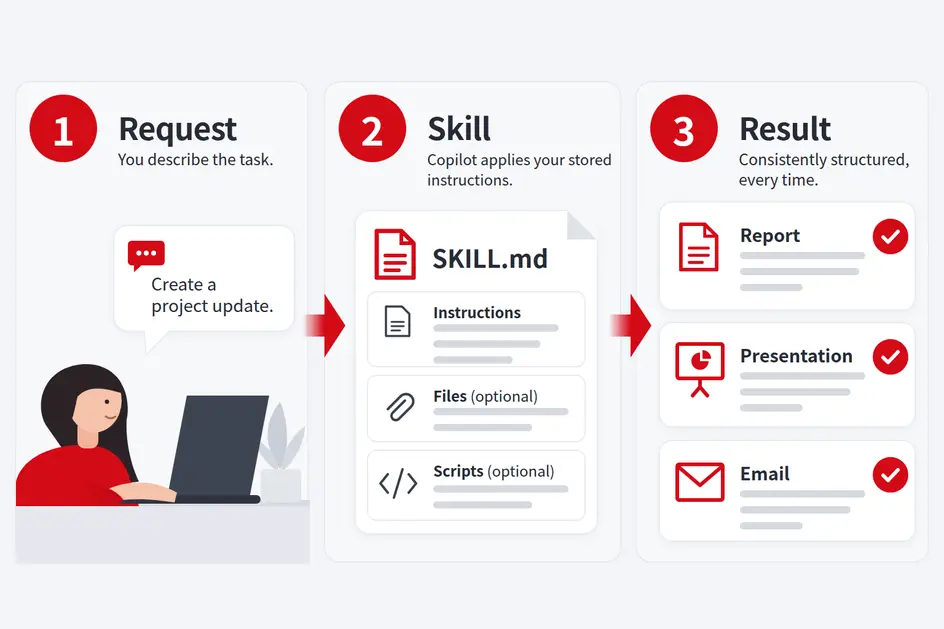
What is a skill?
A skill contains fixed instructions for a recurring task. In addition, templates, reference data or scripts can be stored within it. Copilot draws on these specifications when appropriate queries are made, without the user having to reformulate them each time.
| Building block | What is it for? |
| Prompt | A one-off query in a conversation |
| Skill | Instructions for tasks to be carried out according to a standardised procedure |
| Connector | Connects additional business data and services to Copilot, both within and outside Microsoft 365 |
| Agent | A customised version of Copilot designed for a specific purpose |
| Plugin | A package that bundles skills, connectors, agents and MCP servers, and is managed centrally |
Skill or Scheduled Prompt? A skill defines how Copilot should carry out a task. Scheduled prompts are used to automatically execute requests at specified times. Whether scheduled prompts can access skills directly should be checked depending on the current rollout and the relevant Copilot interface.
Skill or Agent? An agent is a standalone Copilot variant with its own mission, its own knowledge sources and often its own actions, created, for example, in Copilot Studio. A skill, on the other hand, does not change who carries out a task, but rather how Copilot carries it out. If you primarily need consistent results for recurring tasks, you’ll usually achieve your goal more quickly with a skill than with a dedicated agent. We describe how agents in Copilot Cowork take on tasks independently in our article on Copilot Cowork.
What skills can do in chat
Automatic selection: If a request matches a skill, Copilot uses it automatically. Users can disable this automatic feature.
Use in Chat and Cowork: Skills created in Chat are also available in Copilot Cowork. Conversely, Cowork skills only appear in Chat if they have been shared.
Ready-made skills from the Agent Store: Skills and plugins containing skills, including those from software manufacturers, can be found in the Agent Store.
Efficient use of context: Copilot only loads a skill’s instructions when they are actually needed. This means the instructions do not have to be loaded in full into the context for every query. Nevertheless, skills should be clearly described and distinguished from one another so that Copilot can reliably select the appropriate skill.
Typical use cases for Copilot skills
Skills are useful wherever a task is repetitive, the result follows a fixed structure, and the specifications can be formulated in writing. Some examples:
Manufacturing and mechanical engineering: Fault and deviation reports following a fixed format, including the event, the affected plant, immediate action and outstanding issues.
Pharmaceuticals and healthcare: summaries of amended work instructions in a standardised format. Technical approval remains with quality management.
Transport and logistics: Responses to status and supplier enquiries, including mandatory details such as order number, delivery date and contact person.
Finance and insurance: Meeting notes following the internal documentation format, without adding to or evaluating the content.
Public Administration: Summaries of tender documents based on fixed criteria such as deadlines, eligibility criteria and award criteria.
Across all departments: status reports , meeting minutes and customer emails in the agreed corporate tone.
Structure of a Skill
Technically, a skill is a folder containing one mandatory file: SKILL.md. It consists of a YAML header (frontmatter) and the actual instructions in Markdown. Optionally, folders for references, scripts or templates may be included. The format follows an open standard that Microsoft also uses in Copilot Studio and for agents.
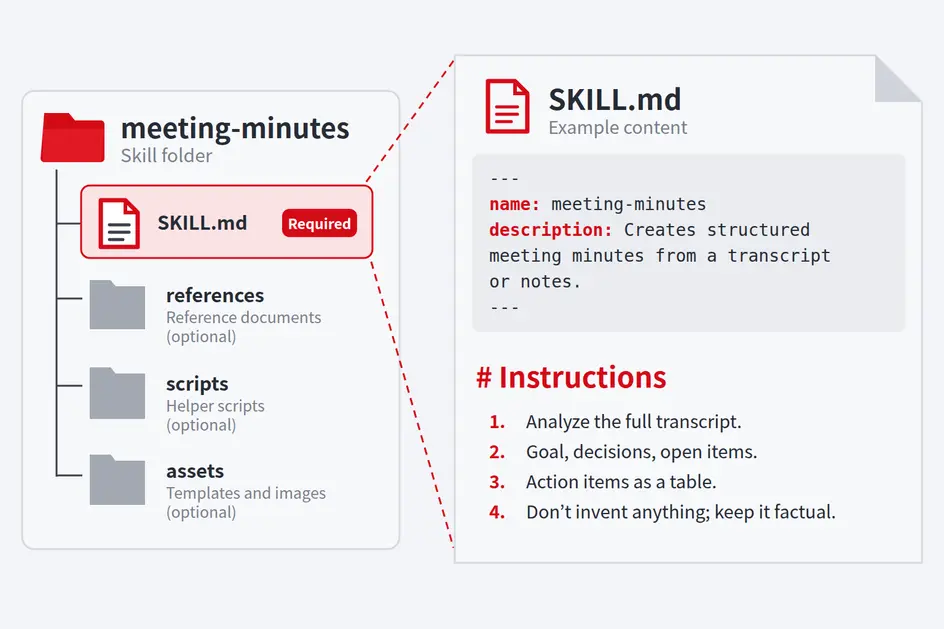
Important: The onlyrequired fields in the frontmatter are ‘name ’ and ‘description’. The folder name must match the value of ‘name’. The instructions should be less than 20,000 characters.
Example: Skill for meeting minutes
Our Copilot sessions revealed that users frequently have similar requirements: minutes should contain decisions, outstanding items and tasks, without any content being added or interpreted. Rather than reformulating these specifications for every meeting, they can be stored in a skill
---

name: meeting-minutes

description: Creates structured meeting minutes from a transcript

  or notes. Use this when asked for a summary, minutes or

  outcomes of a meeting.

---


# Instructions

1. Analyse the transcript or notes in full.

2. Organise the result into:

   - Purpose of the meeting (1–2 sentences)

   - Decisions

   - Outstanding issues

   - Tasks as a table: Task | Responsible | Deadline

3. Do not invent any content. Mark missing details as ‘outstanding’.

4. Use a factual tone, in German, and avoid filler sentences.
Practical tip: Whether Copilot automatically selects a skill depends on the description. Describe specifically which queries the skill should apply to, rather than just what it does
Guide: Using skills
Open Copilot Chat.
Click on the ‘+’ in the input field and select ‘Add content ’.
Open the ‘Agents and Skills’ tab and select the desired skill. Alternatively, type / or @ in the prompt and select the skill name.
Formulate your query and send it. Unless you explicitly select a skill, Copilot will decide for itself based on the description.
Note on the interface: According to MC1484008, the ‘Agents’, ‘Agents & Skills’ and ‘Customise’ buttons will be replaced by a single ‘Plugins’ button between the end of October and the end of November 2026. Menu paths in your tenant may therefore already differ.
Guide: Creating your own skill
Users can create or edit skills directly in the chat, or upload them as a ready-made skill folder. Here’s how to do it:
Select a task: A task for which Copilot regularly requires the same specifications.
Define the process and outcome: Work steps , structure, tone of voice and anything Copilot should avoid (no-gos).
Write SKILL.md: name in lower case with hyphens, precise description, instructions as numbered steps.
Optionally attach files: a template , glossary or example of a good result.
Create or upload: Create itdirectly in the chat or upload it to the Skills folder.
Test realistically: Use several typical queries to check whether the skill is reliably recognised and delivers appropriate results.
Refine and share: Refine anyunclear instructions and initially test the skill with a small group of users.
Do’s & Don’ts
| Do | Don’t |
| One task per skill | One skill for everything |
| Specific description with triggers | Vague descriptions such as ‘helps with texts’ |
| Include an example of the desired outcome | Confidential customer data in skill files |
| Explicitly prohibit making up content | Distributing untested skills to everyone |
Distributing and managing skills
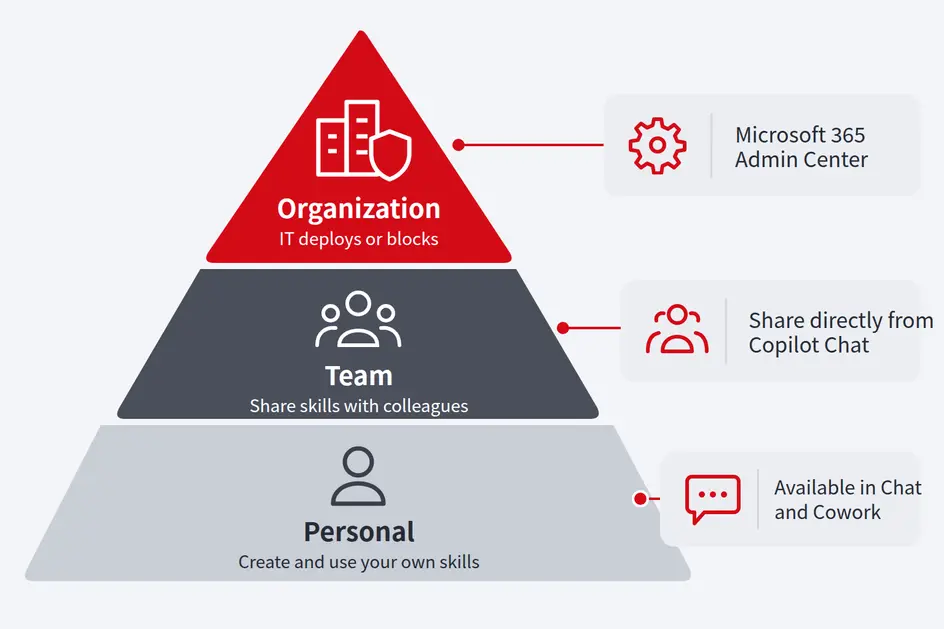
IT manages skills organisation-wide in the Microsoft 365 Admin Centre. There, administrators specify which publishers’ plugins are permitted, and make skills available to everyone or to selected groups, or block them. In the Tools view, they can see which skills users have created in Copilot Chat. There is no single central control for everything: personal skills, plugins, agents and MCP servers are managed in different places.
In practice, therefore, it is not enough simply to enable or disable skills from a technical perspective. Organisations should also specify who publishes organisation-wide skills, how these are tested, and who is responsible for updates.
Guidance for administrators
In the Microsoft 365 Admin Centre, under Agents > Settings > Agent and plugin access, specify which publishers’ plugins are permitted: Microsoft, your own organisation, or certified third-party publishers.
Upload skills and plugins under Agents > Tools > Upload and make them available to all or selected groups, or block unwanted ones.
Use the Tools view to view all skills created by users in Copilot Chat and check them regularly.
Deploy organisation-wide skills as a ZIP package containing manifest.json and icons.
Governance notes
Information Barriers: The roll-out will begin in Novemberin affected tenants. Personal and admin skills can be used, but sharing your own skills is not permitted for the time being.
Costs: In Copilot Studio and Cowork, usage may incur credits or usage-based charges. Check the licensing model in advance.
Conclusion
Skills are particularly useful where employees regularly have to explain the same background information to Copilot. They are no substitute for good source data or a subject-matter review of the results. Used correctly, however, they can standardise recurring tasks and make it easier for users to get started. To start with, two or three clearly defined use cases, tested with a small group of users, are sufficient.
Our recommendation: Start with a pilot group, define the authorised publishers in the Admin Centre and build up a small collection of verified team skills. Claranet supports organisations in the introduction of Copilot Skills, from governance and technical configuration right through to the development and testing of specific use cases. Our Microsoft 365 Copilot Assessment offers a structured way to get started.
Frequently asked questions about Copilot Skills
What is a skill in Microsoft 365 Copilot Chat?
A skill is a saved set of instructions for a recurring task. Copilot applies it automatically when a request matches the skill’s description, or when users specifically select the skill.
What is the difference between a skill, an agent and a plugin?
A skill defines how Copilot performs a specific task. An agent is a customised version of Copilot designed for a specific purpose. A plugin bundles skills, connectors, agents and MCP servers into a single package that is managed centrally.
How do I create my own skill?
You define the task, workflow and desired outcome, and record both in a SKILL.md file. You can create the skill directly in the chat or upload the skill folder. Before sharing it, you should test it with several typical queries.
How do administrators manage Copilot skills?
In the Microsoft 365 Admin Centre, administrators specify which publishers are authorised and can make skills and plugins available to groups or block them. In the Tools view, they can see all the skills that users have created in Copilot Chat.
What rules do organisations need for Copilot Skills?
At least three: who is authorised to publish organisation-wide skills, how new skills are tested, and who updates them. Furthermore, no personal or confidential data should be included in skill files.
Do I need a Microsoft 365 Copilot licence for skills?
That depends on the licensing model and the Copilot interface used. In Copilot Studio and Cowork, additional credits or usage-based charges may apply. You should therefore check the licensing terms before a wide-scale roll-out.
When will skills be available in Copilot Chat?
The global roll-out has been underway since October 2026. In tenants with information barriers, it will follow in November 2026. In these tenants, personal skills and those provided by administrators can be used, but sharing your own skills is not yet possible.
Alian Zenn,
Workplace ConsultantAlian Zenn is a consultant and Microsoft Certified Trainer who, since the launch of Microsoft Copilot, has been working extensively on the potential of AI in the corporate environment. His focus is on Copilot, AI agents and the digitalisation and automation of processes using technologies such as Power Automate.